Most support teams want two different things from their Slack ratings channel, and those two things are in tension.
They want the whole team seeing every CSAT as it comes in - the positive ratings keep morale up, the volume is motivating, and it's good for agents to know their work is landing. But they also want leads and managers alerted immediately when something goes wrong, without that alert getting lost in a channel full of smiley faces.
Once you've split ratings into two channels the way this article describes, a 😠 or 🙁 rating posts straight to your dedicated DSAT channel the moment it's submitted - not buried in a feed of smiley faces, so a manager can act on a bad outcome before it becomes a churn risk.
Free trial · no card · about 2 minutes to set up
The usual workaround is to put everything in one channel and hope the right people notice the negative ratings - the managers who can take action, not the agents who have to watch them roll in. That can feel rough for agents, especially when a low score has nothing to do with how they handled the conversation and everything to do with company policy they're enforcing. Or teams set up manual filters and check them later. Neither works particularly well.
Supportman now lets you route dissatisfied and neutral ratings to a separate channel entirely. It's the same real-time feed described in how to send Intercom ratings to Slack, split by rating. Here's how to set it up.
What the DSAT channel setting does
When you configure a DSAT channel, non-positive ratings - 😠, 🙁, and 😐 - route to that channel instead of your main Supportman channel. Positive ratings keep posting to your main channel as before.
The most common setup is: positive ratings stay in #intercom-ratings for the whole team, and dissatisfied and neutral ratings go to #intercom-dsat or #support-leads. Your team keeps seeing the good news. Your leads see every problem rating the moment it happens.
The DSAT channel setting is available on Supportman's Basic plan and above. For the short version of what routing does, see the DSAT alerts overview.
How to set it up
Open Slack and navigate to the Supportman App Home. You can find it by searching for Supportman in your Slack sidebar, or by clicking on the Supportman bot and going to the Home tab.
In the App Home, you'll see your current channel settings - this is where you configure which Slack channel receives which type of notification. Scroll down to find the DSAT channel setting.
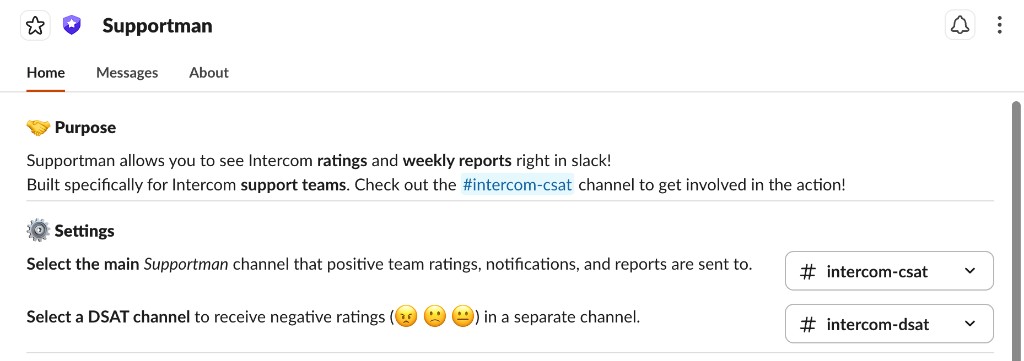
From the dropdown, select the channel you want dissatisfied and neutral ratings to post to. If the channel doesn't exist yet, create it in Slack first and then come back - Supportman will automatically join the channel and request any permissions it needs.
From that point, any 😠, 🙁, or 😐 rating posts to your DSAT channel only - it will no longer appear in your main ratings channel.
Choosing the right channel
A few options depending on how your team is set up:
A dedicated #intercom-dsat channel. Useful if you want a clean record of every dissatisfied and neutral rating, searchable and separate from the happy noise. Good for teams that review DSATs in a weekly quality review or run a DSAT root-cause analysis each month.
Your existing #support-leads channel. If leads are already active there and you want them paged immediately without creating a new channel, just point the DSAT setting at the one they're already watching.
A private channel for managers only. Some teams prefer DSAT ratings to go somewhere agents don't see - so managers can discuss and respond without agents feeling scrutinised. If that fits your culture, create a private channel and use that.
There's no one right answer. The goal is that a dissatisfied or neutral rating reaches the right person fast, with enough context to act on it.
What the DSAT notification looks like
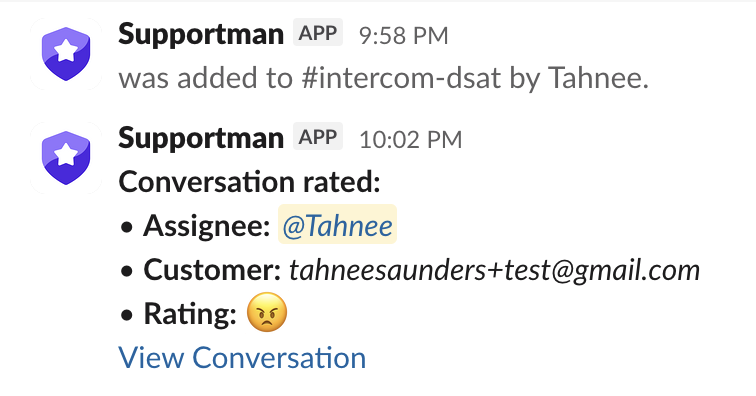
The message in your DSAT channel looks the same as any other rating notification from Supportman - the assigned agent, the customer, the rating emoji, and the customer's comment if they left one. There's a link straight to the conversation in Intercom. For what to say once you open it, use the negative CSAT response playbook.
A few things to know
Setting a DSAT channel moves non-positive ratings off your main channel. Once configured, 😠, 🙁, and 😐 post to your DSAT channel only. Your main Supportman channel keeps positive ratings.
You can change it at any time. If the channel you pick isn't working, go back to the Supportman App Home and update it. Changes take effect immediately.
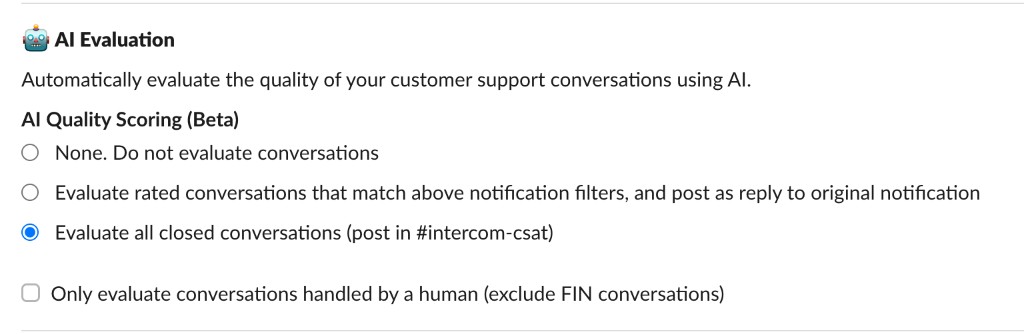
AI Evaluation can post to your main channel before a DSAT arrives. If you have the "Evaluate all closed conversations" setting enabled, AI evals often run before a CSAT rating lands. The closed conversation will first appear in your main #intercom-csat channel with the AI eval attached. If a DSAT rating comes in later, the conversation is reposted to your DSAT channel.
Want a more custom setup, an AI eval delay, or help thinking through the right channel structure for your team? Email team@supportman.io and we can fix this up for you. We're gathering data at the moment on how best to run this workflow, given the low percentage of conversations that get a CSAT submitted - have your input!
Frequently asked questions
What is a DSAT channel?
A Slack channel that receives non-positive Intercom ratings (and optional neutrals) so leads can recover the conversation without those alerts sitting in the same feed as Amazing and Great.
Does Intercom send DSAT to Slack?
No. Intercom's native Slack app does not post conversation ratings. You need Supportman or another workflow. Setup for all ratings: send Intercom ratings to Slack.
Is DSAT routing on the Pro plan?
No. The DSAT channel setting is on Supportman's Basic plan and above.
Which ratings go to the DSAT channel?
Once configured, non-positive ratings post to the DSAT channel only. Positive ratings stay on the main ratings channel. Intercom classifies Terrible as negative and Okay/Bad as neutral; your alert policy can include neutrals if you want a wider recovery queue.