Support agents make judgment calls all day. Refund a customer who's outside the policy window. Offer a credit for a service failure. Grant an exception for a key account. These are real decisions with real consequences, and right now most teams handle them through a Slack DM, a verbal yes in a meeting, or a best guess.
The problem isn't the decision. It's that there's no record of it. When finance asks who approved the $500 credit, the answer is usually someone's memory. When you want to check whether you're being consistent across agents, there's nothing to review.
This is the exact workflow Approvals runs today: request from the Intercom inbox, decide in Slack with a required reason, and the audit trail builds itself as a byproduct of every decision.
Free trial · no card · about 2 minutes to set up
Approvals is Supportman's solution to this. Agents request approvals from inside the Intercom inbox. Managers approve or reject in Slack, with a reason. The decision - and the reason - stays on the record.
Here's how to get set up and start using it.
Getting access
Approvals is available on every Supportman plan at no extra charge.
Connect Intercom and Slack, then pick the channel your approval requests should land in. The Approvals module appears in the Supportman panel inside your Intercom inbox. Most teams are set up in under two minutes.
How agents request an approval
Open any conversation in Intercom where an approval is needed. In the apps sidebar, open the Supportman panel. You'll now see an Approvals section alongside the existing Share options.
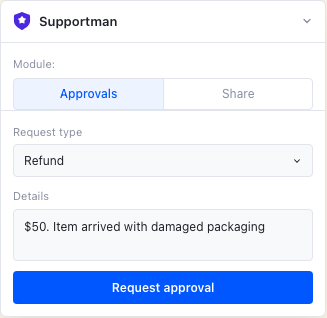
Select the request type that fits the situation. If there isn't a type to suit you, choose Other - or email team@supportman.io with what you'd like to see.
Add a short line of context in the details field - enough for the manager to understand what's being asked and why. Something like "Customer outside the return window, been with us 3 years, item arrived damaged" gives a manager what they need to decide quickly.
Submit the request. It posts immediately to your #intercom-approvals channel in Slack.
How managers approve or reject in Slack
The approval request appears in #intercom-approvals as a Slack message from Supportman. It shows who's requesting, when they requested it, the request type, and the details the agent added.
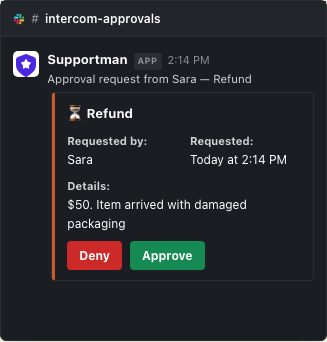
There are two buttons: Approve and Deny.
Click either one. You'll be prompted to add a comment - this is required, not optional. The comment doesn't have to be long. "One-time exception, approved" or "Outside policy window, declined" is enough. The point is that the reason is on the record.
Once you submit, the decision is done. It takes a few seconds to flow back to Intercom.
What the agent sees
Back in the Intercom inbox, the Supportman panel updates to show the outcome. The agent sees whether the request was approved or denied, who decided, and the manager's comment.
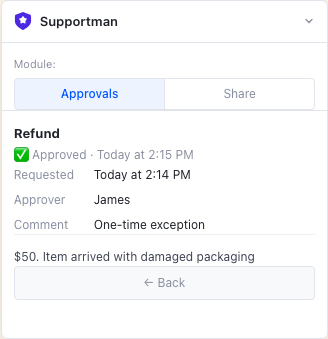
They don't need to check Slack. They don't need to ask. The answer comes back to them where they're already working.
The audit trail
Every approval request, decision, and comment is stored in the #intercom-approvals Slack channel. If you need to review what's been approved, you can scroll the channel or search it.
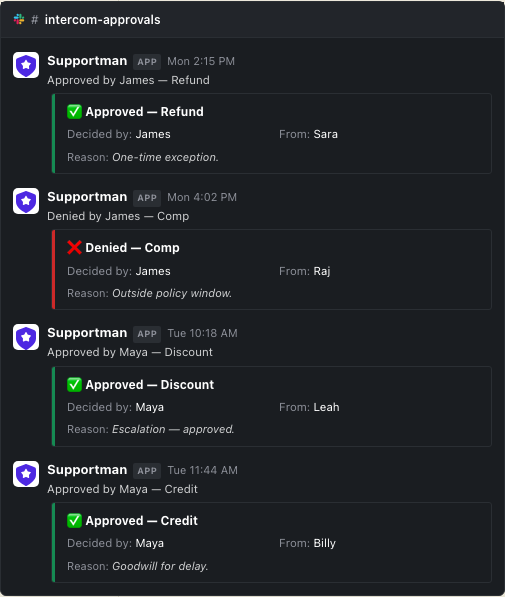
For a more structured view, Approvals supports CSV export. The export gives you every request in a spreadsheet: date, agent, request type, context, manager, decision, and comment. Useful for monthly finance reviews, QA sessions, or any situation where you need to account for credits and exceptions.
When to use Approvals (and when to skip it)
If your agents already ping a manager before they act, Approvals is probably the right fit. If not, read on before you route everything through a process.
Any decision that currently lives in a Slack DM or a verbal yes - refunds outside policy, credits above threshold, exceptions, off-policy replies.
If someone needs to sign off before the agent can act, that's an approval. Approvals gives it a home and a paper trail.
Routine decisions agents can already make on their own. If it's inside their normal authority, let them handle it.
Approvals isn't bureaucracy insurance. It's not for everyday interactions where nobody would ever ask "who approved this?"
Would you want to answer "who approved this and why" six months from now?
Getting help
If you run into anything during setup - the panel not appearing, a request not routing correctly, or questions about how to configure it for your team - email team@supportman.io. We'll respond quickly.
More detail on the Approvals feature is at supportman.io/approvals.
Frequently asked questions
How do Intercom Slack approvals work?
The agent requests from the Intercom inbox. The manager decides in Slack. The decision writes back to the conversation, and the request stays in the approvals channel as the record.
Should every refund go through approvals?
No. Use it for decisions you would want to explain six months later. Routine in-policy refunds should stay with the agent. More: customer support approval process.
Where is the approval audit trail?
In the Slack approvals channel, plus CSV export of date, agent, type, manager, decision, and comment. See support decision audit trail.