Every support team has the same version of this problem. A conversation lands in Intercom that the team lead needs to see. Or you pick something up at 4 PM that you know you won't get to until tomorrow morning. Or there's a pattern emerging across three different tickets and you want to flag it in the right Slack channel before you forget.
The old solution was to copy the Intercom link, switch to Slack, find the right channel, paste it with a note, and switch back. Not broken, but slow - and it happens a dozen times a day.
Whether you're flagging a pattern to #support-leads or scheduling a reminder DM for tomorrow at 9am, this is exactly what the Supportman Inbox App does - share or schedule any Intercom conversation to Slack in a couple of clicks, without leaving the conversation.
Free trial · no card · about 2 minutes to set up
The Supportman Inbox App sits inside Intercom and takes this down to a few clicks. Here's how it works.
What the Inbox App does
The Supportman panel lives in the apps sidebar of any Intercom conversation. From there you can do one of two things: send the conversation to a Slack channel, or DM it to yourself.
That's the whole feature. It's deliberately simple. The point is to make sharing feel as low-friction as possible so it actually gets used.
Sharing is one piece of Supportman's wider Intercom Slack integration, which also pushes CSAT ratings, weekly team reports and AI quality scores into Slack.
How to send a conversation to a Slack channel
Open any conversation in Intercom. On the right-hand side, look for the apps panel - it's the same place you'd find other Intercom inbox apps. Select the Supportman panel.
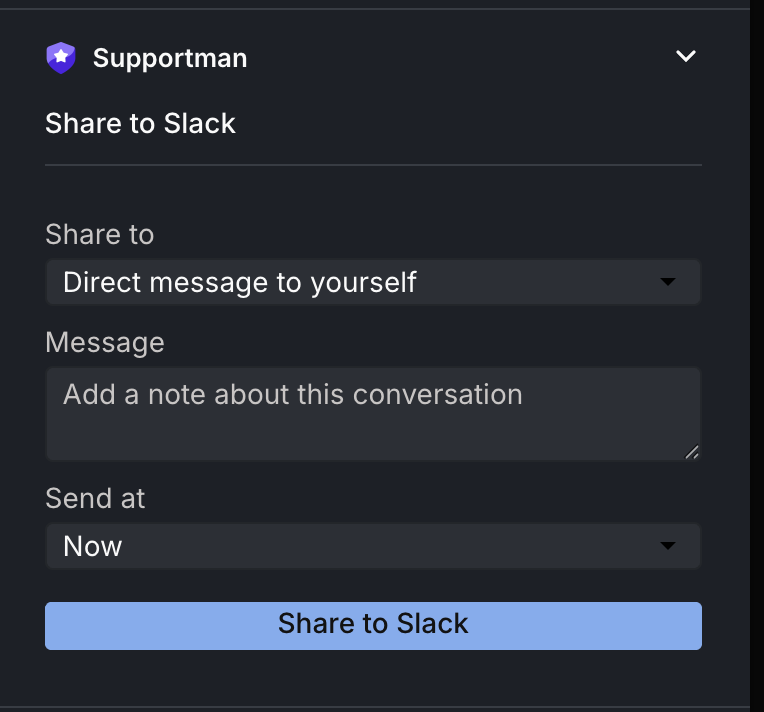
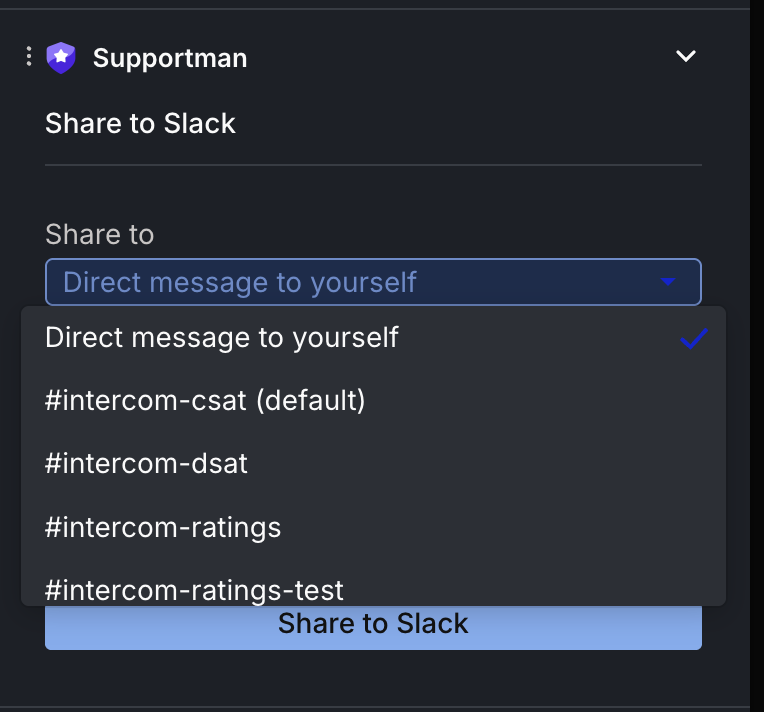
Under Share to, pick the Slack channel you want. Add an optional note if there's context the team needs - something like "worth a look, third time this week we've seen this" - then hit Share to Slack.
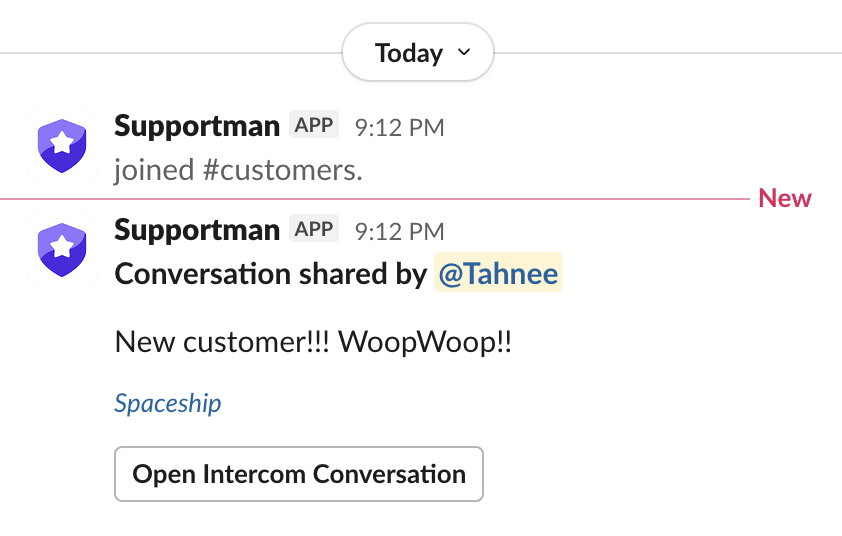
The message lands in Slack immediately. It includes your note, a link to the conversation, and an Open Intercom Conversation button so whoever picks it up can go straight to it.
A few ways teams use this:
Flagging patterns. When the same issue comes up repeatedly, share the latest example to your #support-leads channel with a note. It's easier than trying to explain the pattern from memory in standup.
Escalating to the right team. If a conversation needs engineering or product involvement, share it directly to the relevant channel rather than trying to summarise it in a Slack message. The full context is already in Intercom - let people read it. If the escalation is really a decision that needs sign-off, such as a refund outside policy, use Approvals from the same panel instead.
Coaching moments. Something went really well, or really badly, and you want to use it as a learning example. Share it to a coaching or QA channel with a short note about what to look at, then work it into your support QA coaching plan.
For more channel structures that work for Intercom teams, see Slack workflows for Intercom support teams.
How to DM it to yourself
Choose Direct message to yourself under Share to. This sends the conversation as a Slack DM to you.
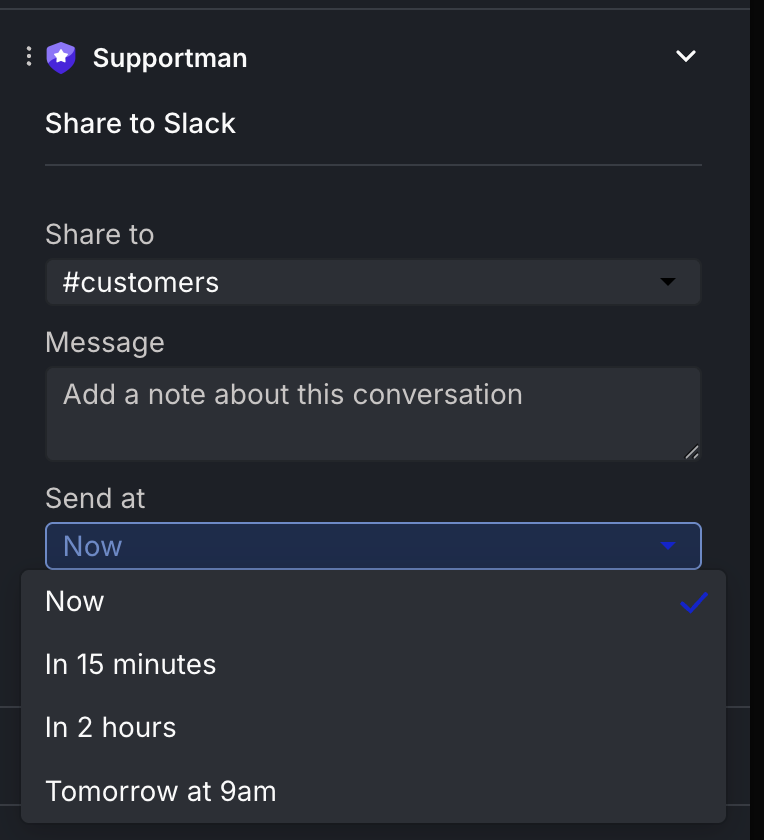
Use this as a reminder system. If you pick up a conversation that you can't finish right now - or that you want to review tomorrow with fresh eyes - set Send at to something like Tomorrow at 9am and hit Schedule reminder. It'll land in your DMs when you're ready.
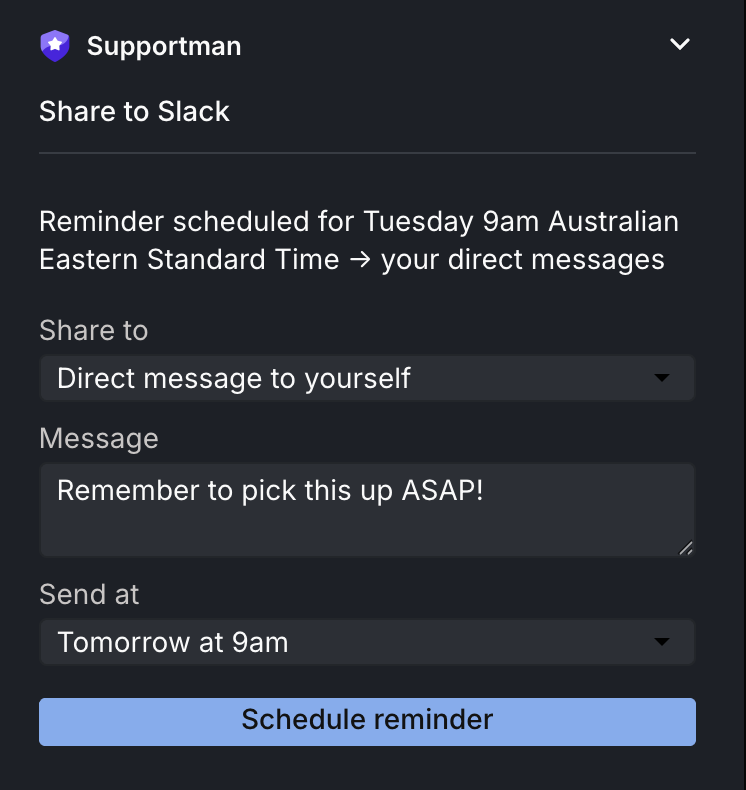
It's also useful if you want to come back to something after a customer replies. Send it to yourself when you're waiting on them, so you don't have to go hunting for it later.
Setting up the app
The Supportman Inbox App is available on all plans and is active by default once you've connected Supportman to your Intercom account. You don't need to install it separately.
Open the Details tab on the right-hand side of any conversation and look for Supportman in the sidebar. Scroll down if you need to - it sometimes sits below the fold. Expand the section to open the panel.
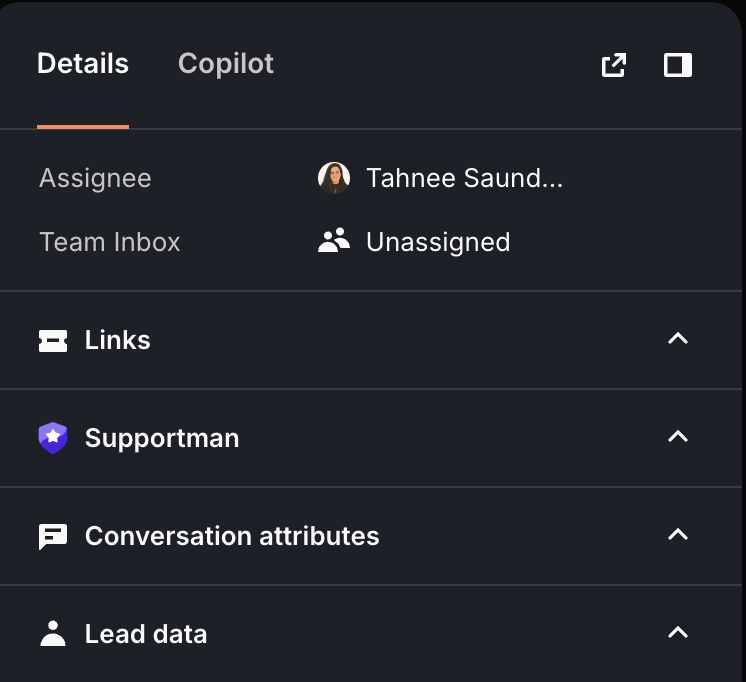
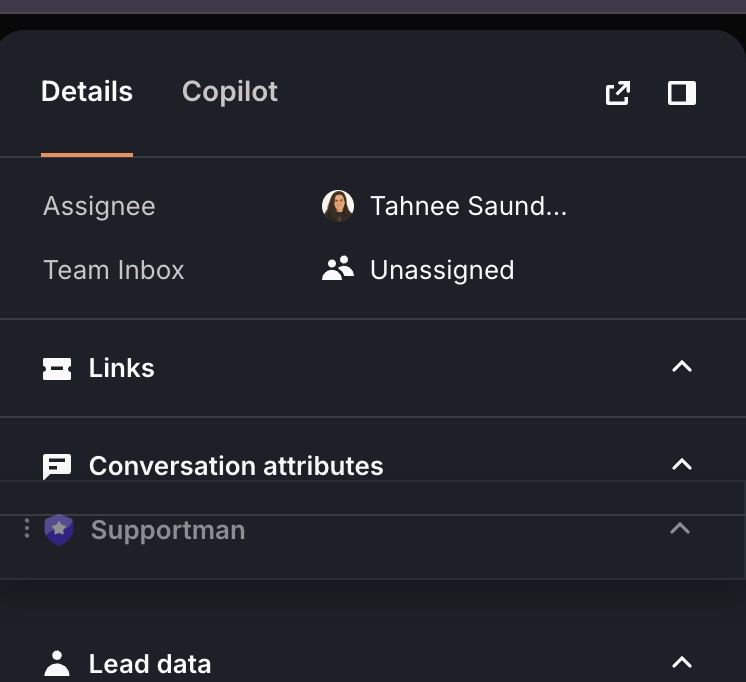
If it sits too far down the list, drag it up. Grab the handle to the left of the Supportman label and drop it higher in the sidebar - most teams pin it near the top so it's always in reach.
If it's still not there, check that you've completed the Intercom connection in your Supportman settings. If it's still not showing, email team@supportman.io and we'll sort it out.
A note on the rebuild
If you tried using the Supportman inbox panel before May 2026 and found it didn't work, that's because it was broken. The original version had been broken for a long time before we took over Supportman - long enough that most teams had stopped expecting it to work.
We rebuilt it from scratch on 27 May 2026. It's now stable, and the earlier bugs - including one where scheduled sends went to your DMs instead of the channel you picked - have been fixed.
Frequently asked questions
Can I share an Intercom conversation to Slack?
Yes. From the Supportman panel in the Intercom conversation sidebar, pick a Slack channel or DM to yourself, add an optional note, and send or schedule it. Native Intercom Slack notifications are a different feature and do not replace this share action.
Does sharing notify the customer?
No. The Slack message is internal. The customer does not see the note or the share.
Can I schedule a reminder for later?
Yes. Set Send at to a later time (for example tomorrow at 9am) and schedule a DM to yourself, or schedule a channel share if the team should see it then.