
xAI shipped Grok Bot in August 2026, and the support-team question arrived about four minutes later: can I point one of these at my Intercom inbox?
Yes — with a much narrower scope than the launch coverage implies. There is a real Intercom plugin, it takes about ninety seconds to connect, and it will read essentially everything in your workspace. What it will not do is reply to a customer.
That distinction is the whole article. Here's what the connector actually exposes, how to set it up, and the five jobs it's genuinely good at today.
Generate your Grok Bot prompt ↓
Everything below reflects Grok Bot as of 28 August 2026. It's in early beta and the plugin catalogue moves weekly — check the current listing before you rely on any specific tool.
What Grok Bot is
Grok Bot is xAI's agent app: you create a named bot, describe the outcome you want, connect the tools it needs, and it works in the background on a schedule.
If you've run into OpenClaw — the self-hosted agent runtime that went from nothing to a quarter of a million GitHub stars over the winter — Grok Bot is that idea with the hard parts taken out. No machine of your own to keep running, no API keys to wire up, no config file to get wrong. A minimal, simplified OpenClaw for your company, living on a virtual computer in the cloud. You give up control and you get back the thing that matters here: a support lead can set this up without booking engineering time.
Three details matter once you point one at Intercom:
- Each bot gets its own cloud computer. It isn't running on your laptop, so it keeps working with the lid shut — and for sites with no plugin, it opens a browser on that machine. Per the docs, you complete the login yourself and "the agent never sees passwords."
- It pauses for approval. Bots run multi-step work end to end and come back when they need a human to sign off.
- Access is gated. You need a Cursor plan that bundles Grok Bot, or a linked SuperGrok, SuperGrok Plus or SuperGrok Heavy account. Desktop and iOS, still early beta, enterprise on a waitlist.
Plugins come from the Cursor Marketplace — a few hundred listings, none installed by default. Intercom is one of them.
What the Intercom plugin actually is
This is the bit worth understanding before you install anything.
The Intercom listing isn't a bespoke Grok Bot integration. It's Intercom's own MCP server — the same endpoint Claude, ChatGPT and Cursor connect to — wrapped in a plugin listing. The marketplace describes it as searching conversations, contacts, companies and Help Center articles, and that description is accurate to what the server does.
The plugin card shows 14 tools once it's added. Intercom documents them like this — and the read/write column is the one that matters:
| Tool | What it does | Access |
|---|---|---|
search / fetch | Universal search across conversations and contacts; fetch full records by ID | Read |
search_conversations | Filter conversations by source type, state, assignee and timing stats | Read |
get_conversation | One conversation in full detail | Read |
search_contacts / get_contact | Find and retrieve contacts, including custom attributes | Read |
list_companies / get_company | Companies with attributes, segments and tags | Read |
list_articles / search_articles / get_article | Help Center articles, including full HTML body | Read |
create_article / update_article | Create and edit Help Center articles | Write |
Conversations, contacts and companies are read-only. The only two write tools in the entire server point at your Help Center.
So the mental model isn't "an AI agent working my queue." It's "a very fast analyst with full read access to my workspace, who can also publish to the Help Center." Those are different hires, and only one of them needs watching closely.
How to connect Grok Bot to Intercom
The whole thing is three moves: create a bot, give it its first message, and click Authorize when Intercom asks. The bot does the actual plugin work itself.
1. Create the bot. In Grok Bot, hit the To: field and choose Create new Bot.

2. Paste its first message. Use the prompt from the generator below — it names the bot, sets its job, and ends by telling it to connect Intercom. You don't open the plugin catalogue yourself: the bot searches it, finds the Intercom connector, and asks whether to add it. Say yes.
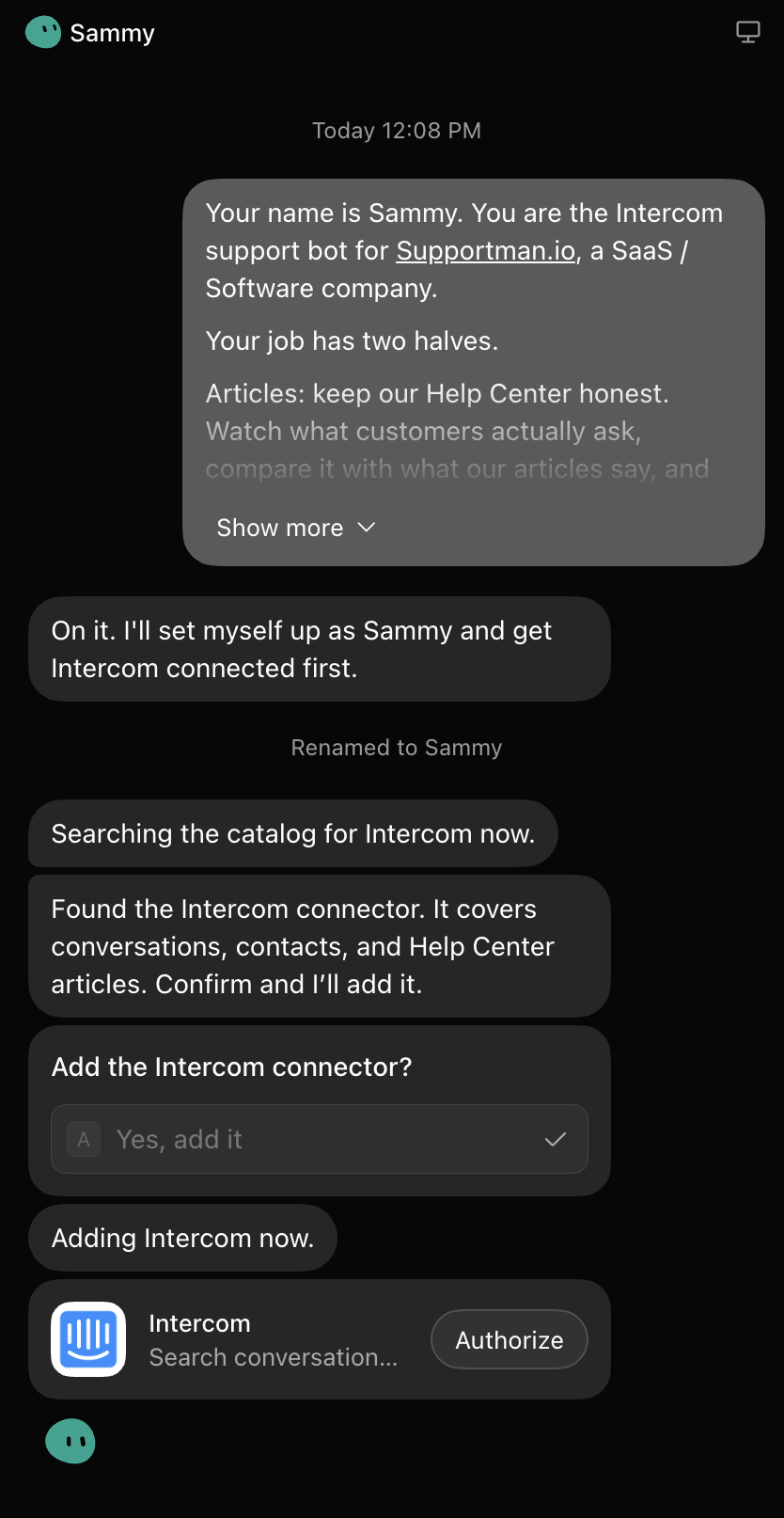
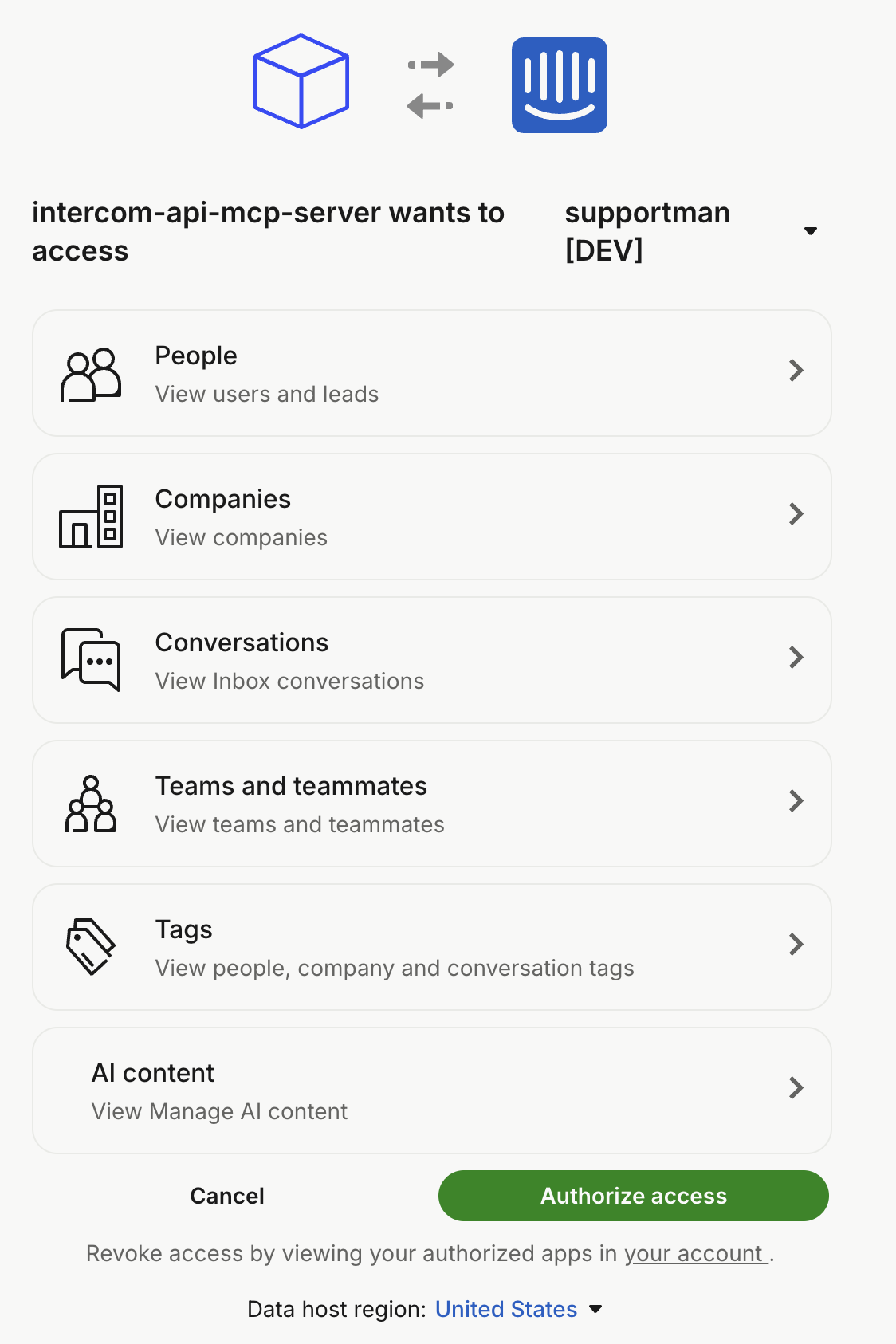
3. Authorize. The Intercom consent screen opens in your browser, and it's worth actually reading, because it confirms everything this article claims about scope. Every permission is a view: people, companies, conversations, teams and teammates, tags, and Help Center content. Pick the workspace, check the data host region shown at the bottom matches where you're hosted, and authorize.
Back in Grok Bot, the Intercom plugin card flips to Added — 14 tools — and the bot confirms what it can reach. If the authorization hangs on "Waiting for authorization," hit Reopen. (You can also install the plugin by hand from the sidebar — Plugins → search Intercom → add → authorize — but the paste-first route gets you the same place with the bot already briefed.)
Two things to check before you start:
Your region. The MCP server runs at mcp.intercom.com/mcp for US-hosted workspaces and mcp.eu.intercom.com/mcp for the EU — the consent screen shows which one you're on. Australia-hosted workspaces aren't supported. If you're on AU hosting, stop here — this article doesn't apply to you yet.
Who authorizes. Whoever clicks Authorize grants their own access, so use an account whose permissions you'd be comfortable handing to an agent — not reflexively the workspace owner. Access is revocable any time from authorized apps in your Intercom account settings, which the consent screen links at the bottom.
The prompt to start it with
A bot with read access to every conversation in your workspace and no brief will happily invent work. This is the opening prompt we use: it tells the bot what it is, fences it inside what the connector can actually do, and sets the rules that keep it honest.
Put in your bot's name and your company, pick what you want it for or write your own, and copy the result into its first message.
Your name is Sammy. You are the Intercom support bot for [your company], a SaaS / Software company.

Your job has two halves.

Articles: keep our Help Center honest. Watch what customers actually ask, compare it with what our articles say, and draft what's missing or out of date.

Investigation: when I ask what's going on with a topic, an account, or a stretch of time, dig through the conversations and come back with what actually happened — themes, examples, and the conversation IDs behind them.

What you can do: search and read conversations, contacts and companies, and read, create and update Help Center articles. You cannot reply to customers, or assign, tag, snooze or close conversations. If I ask for something outside that, say so instead of finding a way around it.

Before you tell me anything about our product, read our Help Center first. Use our words for our features, not generic SaaS / Software language.

Standing rules:
- Never publish a Help Center article. Create and update articles as drafts only, and tell me what's waiting for review.
- Quote conversation IDs whenever you make a claim about what customers said, so I can check it.
- Searches page at 150 results. If you're working from a sample, say so rather than implying a full count.
- Redact customer names and email addresses in anything you write for me.
- If you're guessing, say you're guessing.

First action: let's connect Intercom. Help me install the Intercom plugin, then confirm you can reach our workspace and tell me what you can see.
The three constraints in the middle are the ones that earn their place. Draft-only keeps a confident hallucination off your Help Center. Conversation IDs make every claim checkable. And the pagination note stops it quietly turning a 150-conversation sample into "your customers."
Here's what that looks like in practice. First thing we asked Sammy after connecting: find the last conversation with a negative rating.
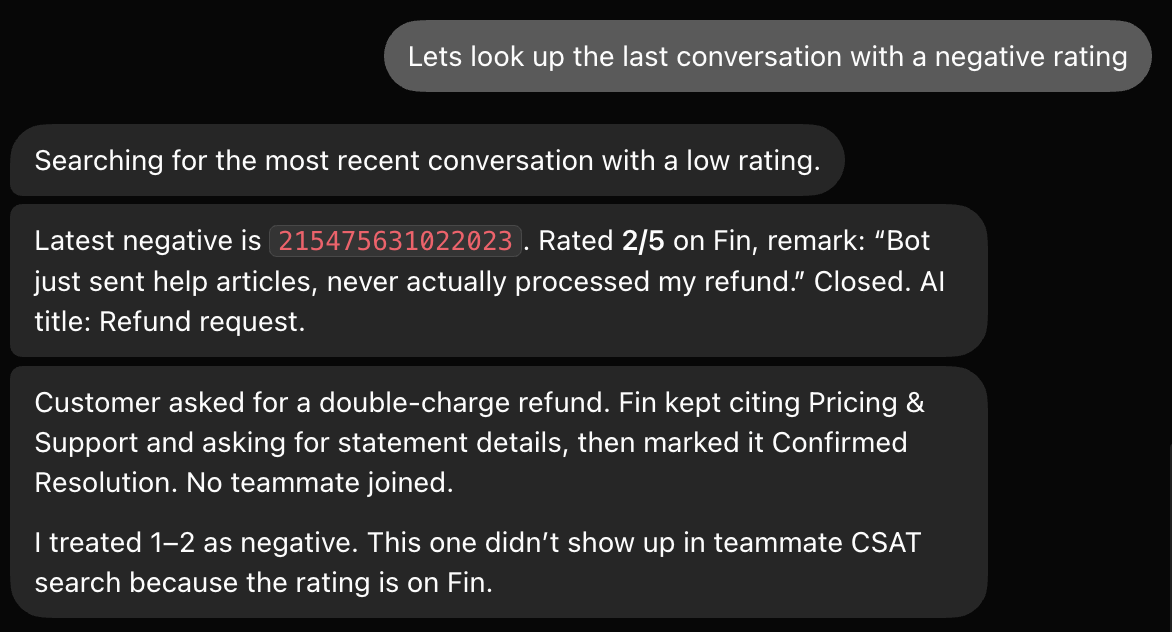
Worth noticing what came back: the ID first, so the claim is checkable. Then the substance — the customer asked for a refund, Fin kept sending help articles and marked it resolved anyway, and the rating sat on Fin rather than a teammate, which is exactly the kind of thing a teammate-CSAT search quietly misses. One question in, and it had already surfaced the Fin problem most teams don't know they have.
Five jobs worth giving it
Read access across every conversation, contact and article in your workspace is genuinely useful. It's just useful for the work that sits around the queue rather than in it.
1. Help Center gap analysis. The obvious one, and the only workflow where read and write meet. Ask it to pull the last month of conversations on a topic, check what the Help Center already says, and draft the article that's missing. This is the highest-value use of the connector and the one that needs a review gate — see below.
2. Article refresh. The inverse: find articles whose content contradicts how recent conversations are actually being answered. Documentation rot is invisible until someone reads all of it, and now something can.
3. A weekly themes digest. Set it as a routine: every Monday, search last week's conversations, group them by what customers were actually trying to do, and report what shifted. Not a metrics report — Intercom already does numbers. A "what were people struggling with" summary that nobody has time to write by hand.
4. Pre-QA triage. Have it pull the conversations matching a set of criteria — one agent, one tag, one week, long handle times — so your review session starts with a shortlist instead of a scroll. It's assembling the pile, not judging it.
5. Account prep. Before a renewal call or an escalation, one prompt gets you contact record, company attributes, segments, and every conversation that account has had. Ten minutes of tab-flipping, gone.
Every job on this list is analysis and preparation, not customer contact. That's not a limitation to work around — it's the safest possible place to start with an autonomous agent, and it happens to be exactly what the connector is built for.
Any of these can run on a schedule rather than on demand — Grok Bot calls them routines, and a bot with a standing Monday job is a different proposition from one you have to remember to ask. That's a piece in itself, and it's the next one we'll write.
What it can't do
Worth being blunt, because a lot of the launch coverage implied otherwise:
- It can't reply to a customer. There is no send-message tool.
- It can't change a conversation. No assigning, tagging, snoozing, closing, or priority changes.
- It can't run your macros or workflows. Nothing in the server touches automation.
- It isn't an analytics engine. Cursor-based searches page at up to 150 items, and normal Intercom API rate limits apply. Ask it for "our CSAT last quarter" and you'll get a confident answer built on a sample. Use Intercom's reporting for numbers and the connector for reading.
- It doesn't replace Fin. Fin is the resolution agent inside Intercom. Grok Bot is a general-purpose operator that can read what Fin did. If you're running both, that's two AI teammates in your workspace and only one of them shows up in your reports.
The "give it a seat" workaround
You may have spotted the loophole. Grok Bot's whole pitch is that it can operate apps that have no clean API — it opens a browser on its cloud computer and works the UI like a person. Nothing stops you logging a bot into the Intercom Inbox that way and having it reply to customers.
Before you do: that's a very different decision from installing a read-only plugin. A logged-in seat sees every conversation, every attachment, and every billing detail in the workspace, and it acts under a teammate identity that shows up in customer-facing replies and in your team's reports. The plugin's read-only ceiling is a feature. Removing it deliberately is a call worth making with your head up rather than as a side effect of "just trying something."
If you do go there, give it its own Intercom teammate account with the narrowest permission set that works — never a human's login — so that everything it touches is attributable and revocable in one click.
Set these two things up first
A review gate on articles. create_article and update_article are the only ways this thing can change something a customer will see. Intercom articles have a draft state — instruct your bot to leave everything as a draft, every time, and make publishing a human action. A confidently wrong Help Center article generates tickets for months.
Its own identity. Authorize with a dedicated account rather than a person's, so you can see what the bot read, and revoke it without locking a human out of their own workspace.
The part nobody set up
Here's what happens after a fortnight of this: you have an agent that has read more of your conversations than anyone on your team. It can tell you what customers asked about. It cannot tell you which of those conversations went badly.
Nothing in the connector solves that, and it isn't a gap Grok Bot is trying to fill. Quality is still a measurement problem: most conversations are never rated, so the ones you'd most want an agent to surface — the quiet failures, the customers who didn't complain and didn't come back — are invisible to any tool that can only read what's there. We've written before about why coverage matters more than the score and what a good Intercom CSAT actually looks like.
That's the piece Supportman handles: every closed conversation scored against your rubric, predicted CSAT for the ones nobody rated, and the ratings that do land posted straight into Slack as they happen. If you're adding AI agents to the workspace, the Fin audit is the same idea pointed at the bots.
Adding an agent that reads your support conversations is a good idea. Adding one while nothing is checking how those conversations went is how teams end up with excellent summaries of a declining service.
Grok Bot and Intercom FAQ
Is there an official Intercom integration for Grok Bot?
Yes. The Intercom plugin in the Cursor Marketplace connects Grok Bot to Intercom's own MCP server, the same endpoint Intercom documents for Claude, ChatGPT and Cursor.
Can Grok Bot answer customer conversations in Intercom?
Not through the plugin. Conversations are read-only; the only write tools create and update Help Center articles. It could drive the Inbox UI through a browser on its own machine, but that's a seat-level decision, not an integration.
Does it work with EU or AU workspaces?
EU yes, via mcp.eu.intercom.com. Australia-hosted workspaces aren't supported as of August 2026.
Do I need a paid plan?
Yes — a Cursor plan that includes Grok Bot, or a linked SuperGrok tier. Grok Bot usage is metered separately from your Grok and Cursor plans.
Does it conflict with Fin?
No. Fin resolves conversations; Grok Bot reads them. They can coexist — but both are AI teammates whose output is worth auditing.
Where to read more
The primary sources, in the order they're useful:
- Introducing Grok Bot — xAI's announcement, and the clearest statement of what the thing is for.
- Get started and use cases — xAI's own docs, worth ten minutes before you create your first bot.
- Computer and apps — what the cloud machine can reach, and how it handles sites with no plugin.
- Skills, routines and automations — scheduling, and teaching a bot a workflow by demonstrating it.
- Approvals, security and privacy — read this one before you connect anything with customer data in it.
- Connect plugins — the setup steps above, from the source.
- Intercom's MCP documentation — the actual tool list, scopes and regional endpoints.
Supportman is not affiliated with Intercom or xAI. Details reflect the state of Grok Bot's beta on 28 August 2026.